How I read, journal and diagram
From high school days, I have always been surrounded by piles of A3 papers, constantly scribbling, drawing diagrams, and creating tables. There was something about the tactile experience of pen on paper that contributed to the flow of information and yielded the best possible outcomes.
Introduction
From high school days, I have always been surrounded by piles of A3 papers, constantly scribbling, drawing diagrams, brainstorming. There was something about the tactile experience of pen on paper that contributed to the flow of information and yielded the best possible outcomes.
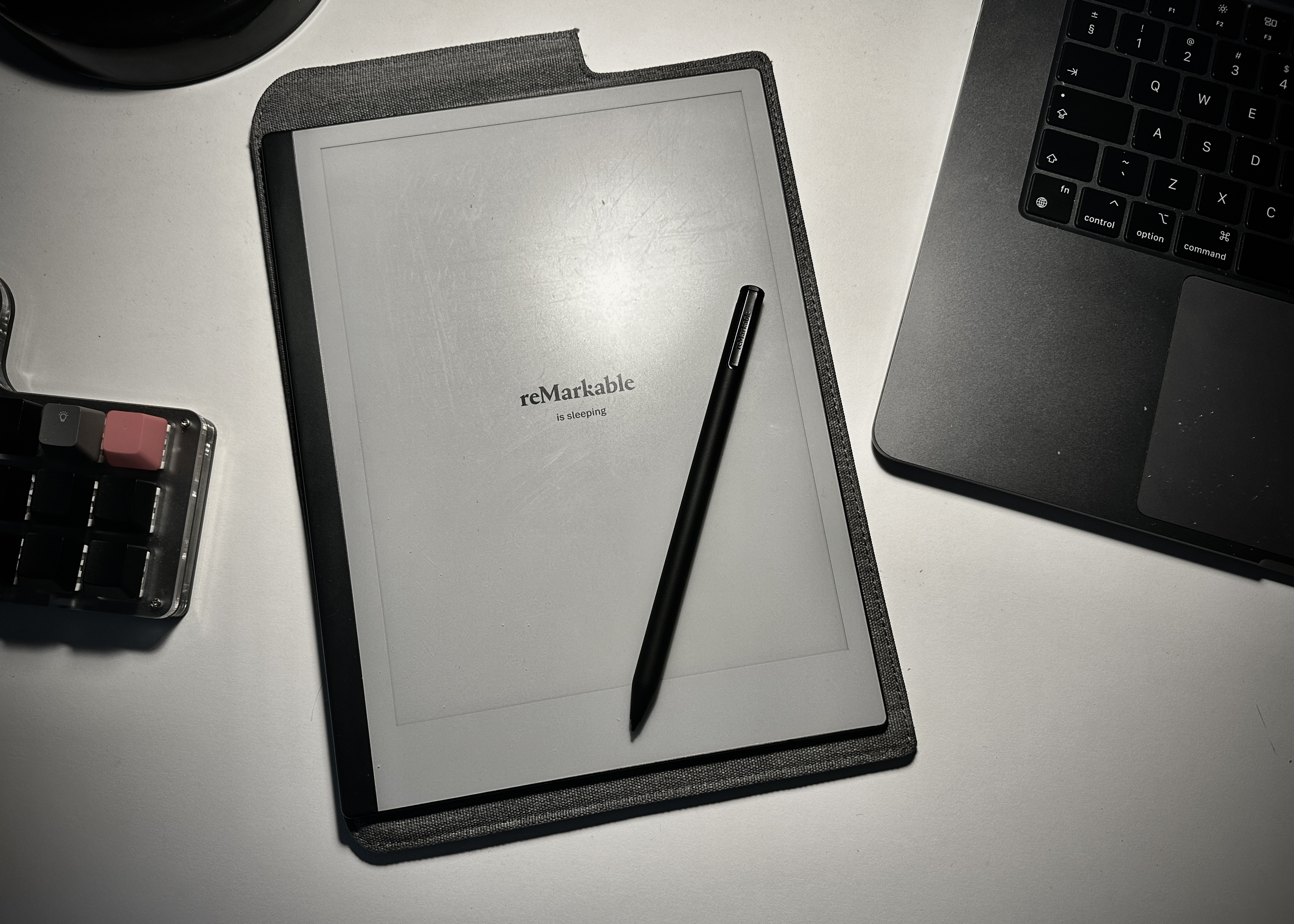
However, I decided it was time to make a change. I wanted to find an alternative to endless stacks of A4s, A3s, and sticky notes while still retaining that satisfying feeling that comes with writing things down. That’s when I decided to give a Remarkable a try.
While the screen on the Remarkable is smaller than an A3 paper, it still offers a conducive environment for structuring information and working with focus. I organise different sources of information based on topics of interest such as Leadership, Tech, Marketing, and more. Whether it’s books or summaries of articles or my own thoughts related to these topics, everything finds its place in the Remarkable notebooks where dots between different sources are connected and conclusions are made.
Templates for Journaling
One of the features of reMarkable is its ability to add custom templates. These templates provide a structured framework for variety of cases like capturing and organising my daily tasks, thoughts and exercising mindfulness. I find myself using templates for Lean canvas, Wheel of life balance, Wheel of emotions and of course Football pitch.
There are lots of templates available, I liked compilation by https://rm.ezb.io/. Few templates of my own (1) – Wheel of emotions, (2) – Football pitch.
The gimmick is though that whenever reMarkable pushes updates – custom templates are getting overwritten, hence this is what happens after the update is done for me – use it at your own risk:
 1
 2#!/bin/sh
 3
 4   # Full snippet available at https://gist.github.com/marcinkevicius/797d7360f458c824c5f4723820383847
 5
 6   # Assign arguments to variables
 7   remarkable_ip=$1
 8   folder_with_templates_path=$2
 9
10   # Output the arguments
11   echo "Remarkable IP: $remarkable_ip"
12   echo "Folder with templates path: $folder_with_templates_path"
13
14   # Download the templates.json file from the Remarkable
15   scp root@$remarkable_ip:/usr/share/remarkable/templates/templates.json .
16
17   if [ $(ls $folder_with_templates_path/*.png 2> /dev/null | wc -l) -eq 0 ]; then echo "Error: No .png files found in the provided folder."; exit 1; fi
18   # Loop over the .png files in the folder
19   for file in $folder_with_templates_path/*.png; do
20       # Strip the .png extension from the filename
21       base=$(basename "$file" .png)
22
23       # Append a new object to the JSON array in the templates.json file
24	   jq '.templates += [{"name": "'$base'", "filename": "'$base'", "iconCode": "\ue9a5", "categories": ["Creative"]}]' templates.json > temp.json && mv temp.json templates.json
25   done
26
27   # Upload the updated templates.json file to the Remarkable
28   scp $folder_with_templates_path/*.png root@$remarkable_ip:/usr/share/remarkable/templates/
29   scp templates.json root@$remarkable_ip:/usr/share/remarkable/templates/templates.json
30   ssh root@$remarkable_ip 'systemctl restart xochitl'
31
Read It Later
I wouldn’t classify myself as an avid reader. What matters to me is establishing a consistent routine or ritual that supports my reading habits. My preferred routine is reading during business travel, particularly during flights or to keep my weekly reading routine running. I have all the necessary materials downloaded to my Remarkable2 tablet for flights. Sorry for spoiler, but by the way there is a cool story about how one Legend booked a ticket from New Jersey to Japan and back in a day for 5000$ to stay focused and finish some of his work.
Remarkable2 allows me to do three main things - maintain focus while reading, jot down notes in my own handwriting directly in the article or book, and create a shared space for notes to form a comprehensive picture, referencing various insights from different articles.
In age of information overload where interesting articles and content are constantly vying for our attention, it’s important to have a system to manage and consume this content effectively. For me, it all began around a decade ago with Google Reader, where I would save articles as favourites and revisit them when I had the time.
Social networks have taken over as personalised content feeds, replacing RSS services for years now. To adapt to this, I turned to tools like Pocket sometimes in combination with IFTTT for saving articles to read later. But I took it a step further by integrating Pocket with Kindle, pushing all articles I have collected over the time to the reading device. One of the favourite commute experiences was reading of articles that was pushed to the device.
This routine transformed my reading experience and I’ve adopted similar approach with reMarkable utilising it’s Chrome Extension or in a following way from the Mobile. This is what I do on iOS:
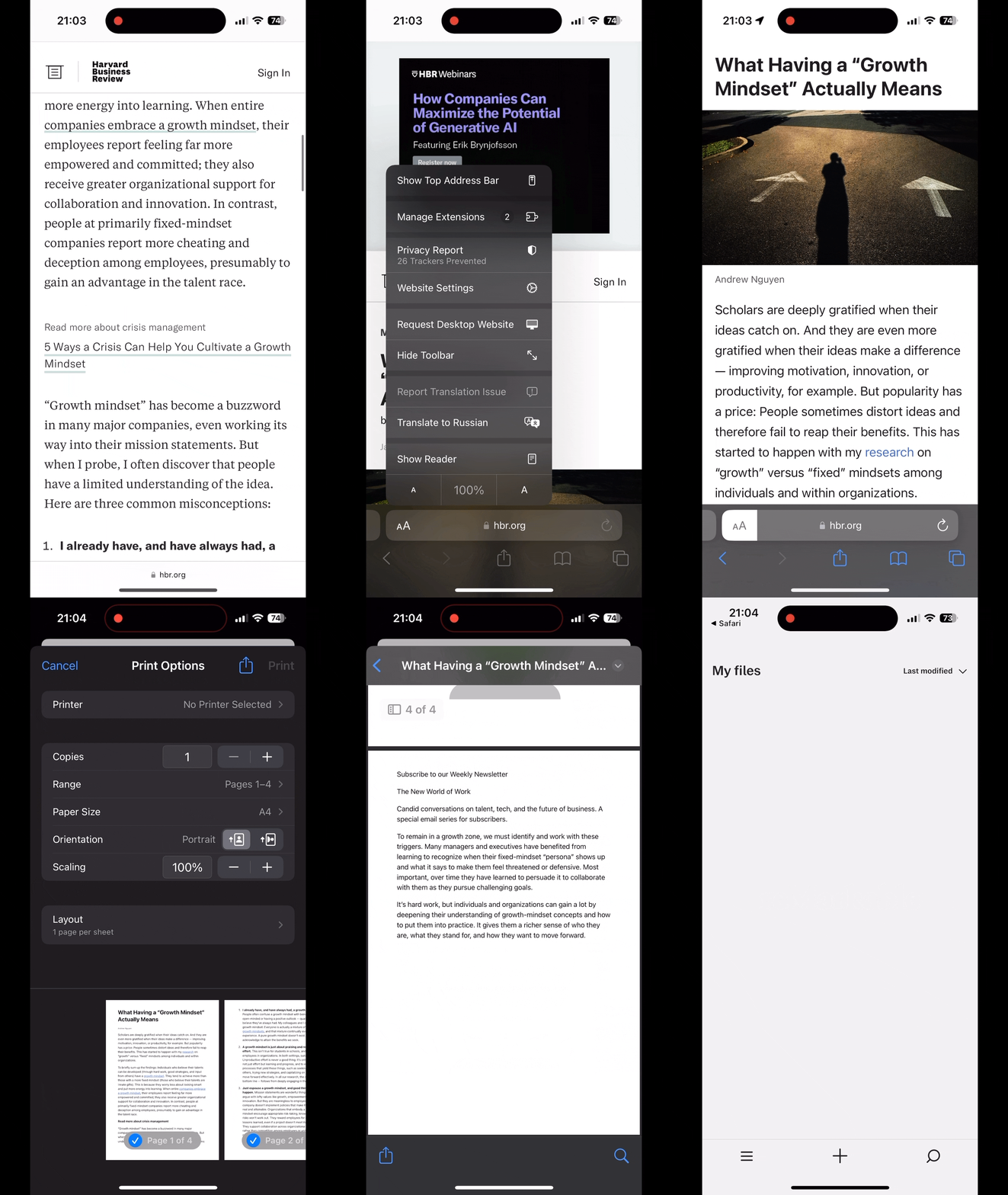 |
- Convert the article to reader mode with a long-press of the icon of the ‘Aa’ icon
- In reader mode, click the ‘Share’ icon
- Click on ‘Print’
- With the print dialog open, use two fingers (in the preview area) and spread outwards (this is the most tricky step)
- That should open the PDF into its own preview. From here you’ll want to click the ‘Share’ icon.
- With the share screen open, click the reMarkable icon to open that PDF in the app.
Diagrams
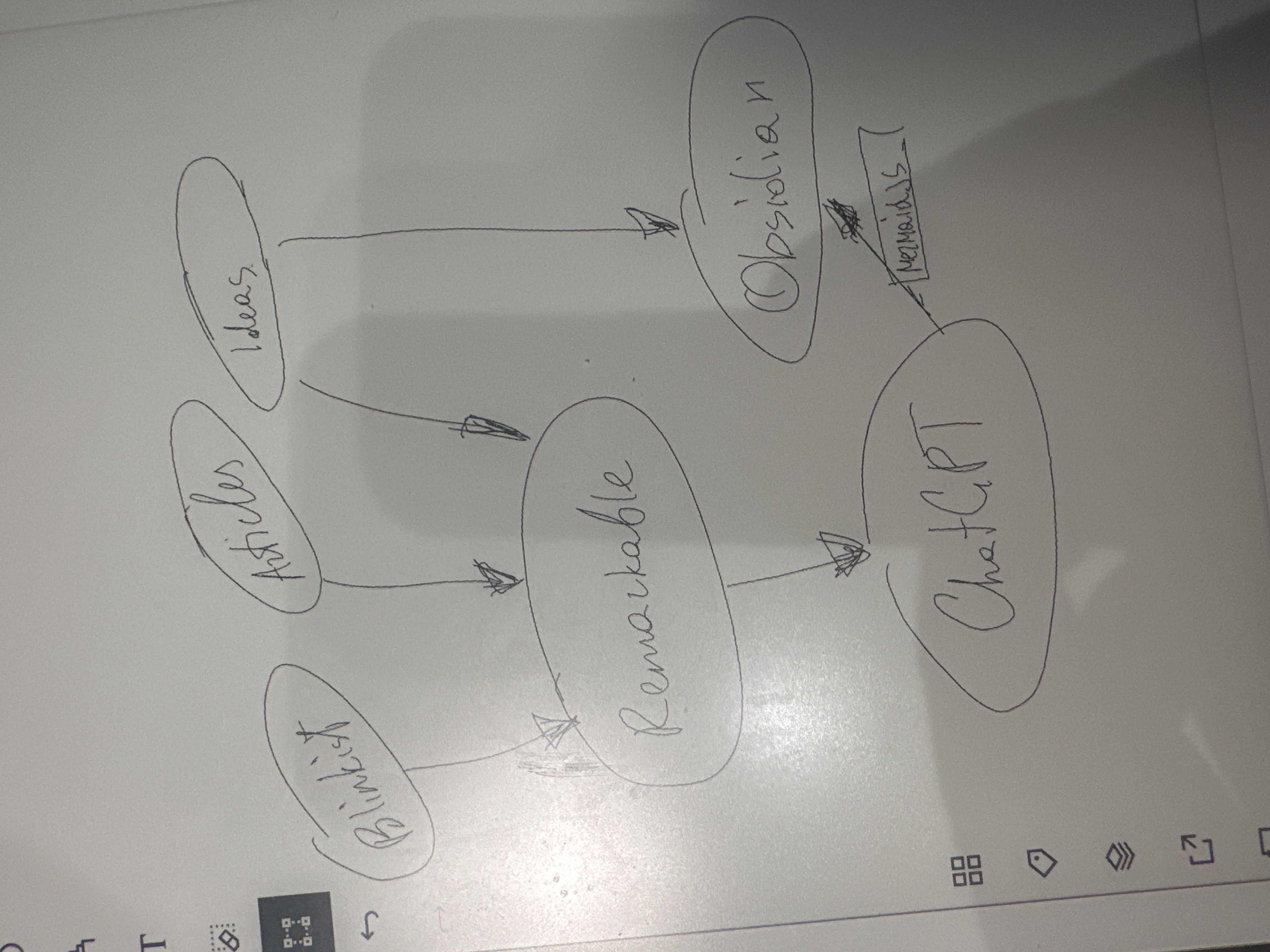
The Remarkable tablet has become an invaluable tool for me when it comes to diagramming and visualizing ideas. Its e-ink display provides a great canvas for creating diagrams with my own handwriting. Whether I’m brainstorming ideas or explaining complex concepts, the tablet allows me to easily draw flowcharts, mind maps, and other visual representations.
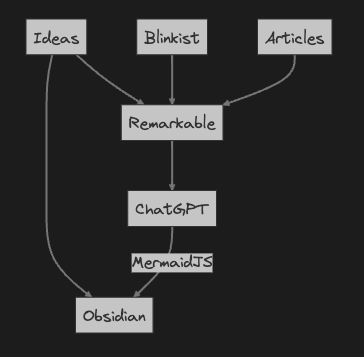
What’s even more exciting is that I have recently discovered a new addition to my workflow that enhances the diagramming capabilities of the Remarkable. By utilising ChatGPT Vision, I can now transfer my hand-drawn diagrams from the Remarkable to other platforms, and easiest so far is to turn diagrams to MermaidJS code and then to use them Obsidian.
 |
 |
Conclusion
In conclusion, the tablet has had a significant impact on my productivity and organisation. Its custom templates have allowed me to structure my thoughts effectively and establish important routines. The Read It Later workflow has improved the way I consume content, providing me with a focused reading experience and the ability to take handwritten notes directly in articles and books. Additionally, with application of ChatGPT Vision, diagrams that I create is super-easy to transfer to other platforms like Obsidian with MermaidJS
Overall, moving away from traditional pen and paper so far proves to be a good and not as limiting decision that I have presumed it to be.